Document 01 of 04
Setup guide
Everything from installing the app to disconnecting it, including the permissions it asks for and the contact properties it creates.
Updated 2 September 2026
Utility Data Sync connects your HubSpot contacts to your utility-data provider account. For each contact you opt in, the app creates a matching customer in your provider account from the contact's name, email, phone, address, and utility; tracks that customer's utility-connection progress; and writes the account, meter, tariff, and latest-bill details back onto the HubSpot contact record once they're available.
Before you start
Nothing happens to a contact until you explicitly opt it in. Installing the app on its own changes no contact data.
Install the app
- Open the app's HubSpot Marketplace listing and click Install app (or Connect app).
- Choose the HubSpot account you want to connect.
- Review the requested permissions and click Connect app.
- You'll be redirected to a confirmation page reading "Authorization complete. You can close this tab." The app is now installed.
Screenshot needed — Marketplace listing Install button
Screenshot needed — HubSpot account picker
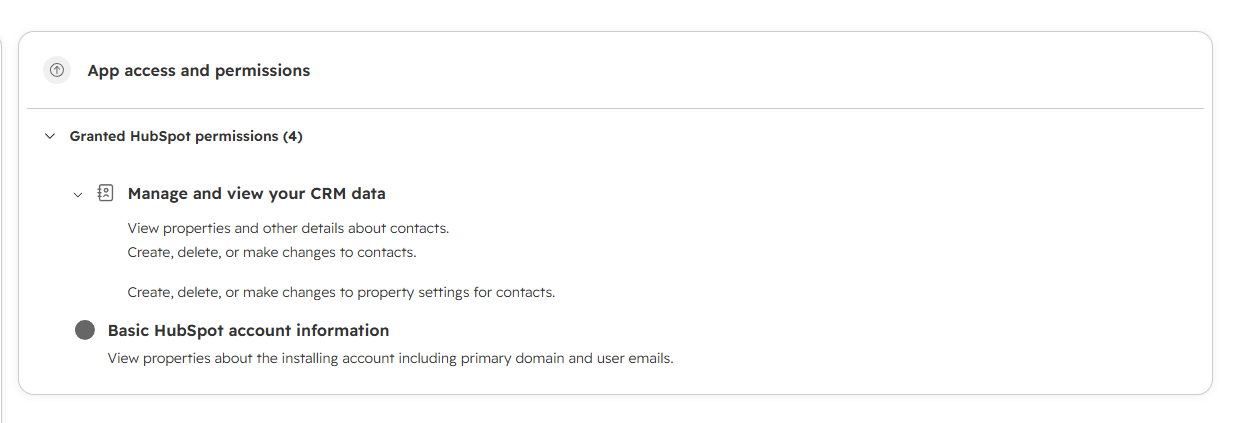
Screenshot needed — authorization confirmation page
Utility Data Sync requests three permissions:
| Permission | Why the app needs it |
|---|---|
| Read & write access to contacts | Read the contacts you opt in, and write sync results back to them. |
| Write access to contact properties | Create the custom contact properties the app uses, listed under Contact properties the app creates. |
| OAuth | Standard authorization. |
On install, the app creates its custom contact properties in a dedicated Utility Data Sync property group. This happens in the background and usually finishes within a minute.
Connect your utility-data provider account
- In HubSpot, go to Marketplace ▸ Connected apps ▸ My apps, click Utility Data Sync, then open the Settings tab.
- Under Environment, choose Staging or Production, matching the provider account you want to sync with.
- In API key, paste the API key from your provider dashboard exactly as shown. You don't need to encode or format it — the app encodes it for you and verifies it with the provider before saving.
- Click Save. On success you'll see a "verified and saved" confirmation. If the key or environment is wrong, the page tells you immediately.
Screenshot needed — app Settings tab
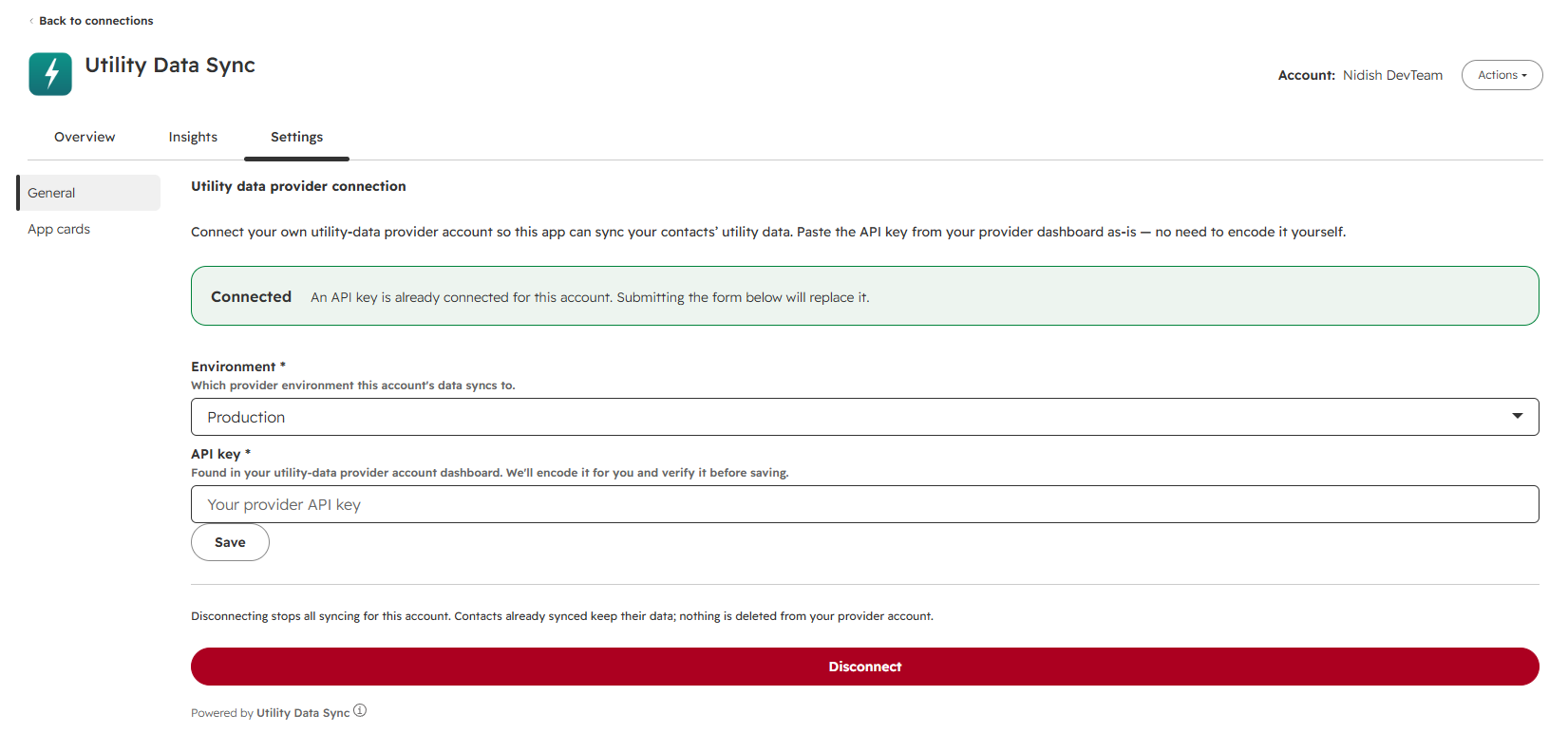
Your connection is stored against your HubSpot account, not a single install. If you reinstall the app later, you won't need to re-enter the key.
Use the app
Opt a contact in
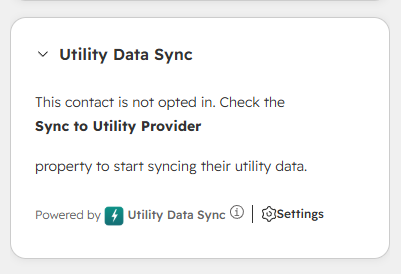
Open the Utility Data Sync card on the contact record and turn on Sync this contact to your utility provider. (Checking the Sync to Utility Provider contact property directly does the same thing.) That's the only manual step — the rest is automatic.
What happens automatically
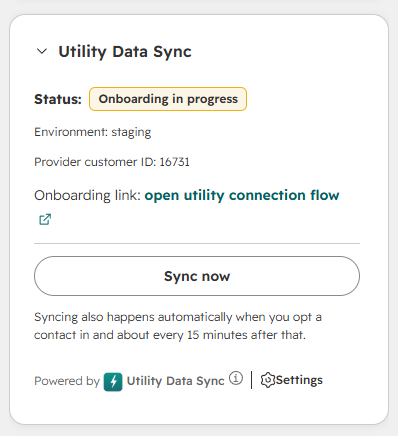
- Customer creation. Within about a minute the app creates a matching customer in your provider account and fills in Utility Customer Created? and Utility Provider Customer Id.
- Onboarding. Until the customer finishes connecting their utility, the app records their Onboarding Link and Onboarding Token once, and keeps Bills Are Ready set to No.
- Bill data. Once the provider reports bills are ready, the app writes the account, meter, tariff, and latest-bill fields onto the contact and sets Bills Are Ready to Yes. The contact is then fully synced and left alone.
A background reconciliation runs about every 15 minutes to catch anything missed and to advance contacts through the stages above.
The sync status card
Add the Utility Data Sync card to your contact record's right sidebar, under Customize ▸ Card library ▸ Card types: App. The card is where you opt a contact in and out, and once it's opted in it shows the current stage, the utility-connection link during onboarding, and — once the data is in — the utility account number, meter, tariff, the latest bill, and links to recent bill files. A Sync now button runs the sync for that contact immediately.
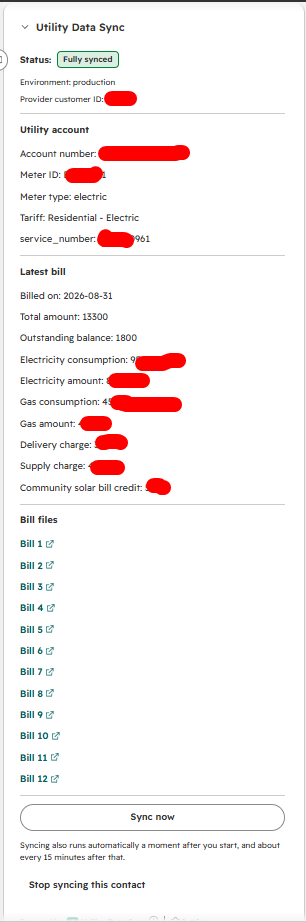
Switching environments
If you change Environment on the Settings page, every opted-in contact is re-synced against the newly selected environment. A contact that was already created there before is reused, not duplicated. Nothing is deleted, so switching back and forth is safe.
Contact properties the app creates
All of these are grouped under Utility Data Sync. You only ever set the first one.
| Property | Purpose |
|---|---|
| Sync to Utility Provider | Opt a contact in. The only property you set. |
| Utility Customer Created? Utility Provider Customer Id | Set when a provider customer exists. |
| Utility | The contact's utility, sent when creating the customer. |
| Onboarding Link Onboarding Token | For the customer to connect their utility. |
| Bills Are Ready | Yes once bill data has been pulled. |
| Account Number Meter Id Meter Type Tariff | Utility account and meter details. |
| Additional Attribute Name Additional Attribute Value | Any extra meter attribute the provider returns. |
| Billed On Outstanding Balance Electricity Consumption & Amount Gas Consumption & Amount Delivery Charge Supply Charge Community Solar Bill Credit Total Amount | The latest bill. |
| Bill File Url 1–12 | Links to recent bill files, newest first. |
| Utility Provider Response | The full raw provider response, for troubleshooting. |
| Utility Sync Environment Utility Sync Ids By Environment | Internal bookkeeping, hidden. Do not edit these. |
Data handling
When you opt a contact in, the app sends that contact's first name, last name, email address, phone number, street address, city, state, ZIP, and utility to your connected utility-data provider to create the customer record. It then reads that customer's onboarding, account, meter, and billing data back from the provider and stores it in the HubSpot contact properties listed above.
The app's backend stores only your HubSpot OAuth tokens and your provider API key, both encrypted at rest. It does not retain contact data of its own — contact data lives in HubSpot and in your provider account.
If a contact is deleted in HubSpot, or deleted under a GDPR or privacy request, the app stops syncing it. Data already written to your provider account is governed by your agreement with the provider and is not removed by the app.
For full details on how contact data is processed and stored, see the privacy policy.
Disconnect the app
Disconnecting the provider connection stops all syncing for the account. Contacts already synced keep their property values. No data is removed from HubSpot or from your provider account.
- Go to Marketplace ▸ Connected apps ▸ My apps ▸ Utility Data Sync ▸ Settings.
- Click Disconnect and confirm.
To reconnect later, re-enter your API key on the same page.
Uninstall the app
Uninstalling revokes the app's access to your HubSpot account and stops all syncing. The custom Utility Data Sync contact properties and their values remain on your contacts unless you delete them manually in HubSpot property settings. Your provider account and its data are untouched.
To uninstall, follow HubSpot's instructions for uninstalling an app.
Support
Questions or problems? Read the support page first — it covers the issues we see most often — or email dev@nidish.com.